


IPTV Player - Smart Stream M3U
0.00.00 Reviews
App Specs
- Version
- 1.0.3
- Updated On
- License
- Free
- Downloads
- 10,000+
- Developer
- ZAM Apps Studio
- Categories
- Libraries & Demo
- Platform
- Android
Screenshots
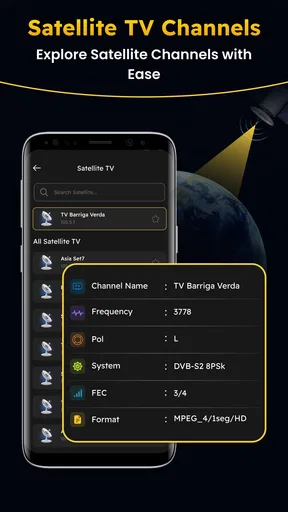
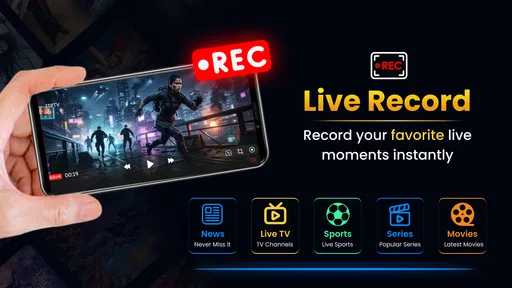
 Analysis by AppCompare
I would approach IPTV Player - Smart Stream M3U as a playback tool, not as a place to discover or subscribe to television channels. Its job is to open playlists and streaming addresses that you already have. That distinction matters: if you have a legitimate M3U playlist or URL and want one app to try it in, the idea is straightforward; if you expect a ready-made channel catalogue, this is probably the wrong starting point.
From ZAM Apps Studio, this free Libraries & Demo app is aimed at people who want to play user-provided IPTV sources on Android. It is rated for Everyone, has reached over 10,000 installs, and is at version 1.0.3. I find the narrow purpose more useful than a broad promise: the value depends less on the player itself than on having a working source and being able to keep its details organized.
What to decide before trying it
The key question is not simply whether you want to watch television on a phone. It is whether you already have a source that this kind of player can use. If you do, the app gives you a place to test that source without turning a general video player into a makeshift IPTV tool. If you do not, installing it will not solve the content problem; you will first need a legitimate playlist or stream address from a provider.
That makes it a better fit for someone who values a direct, source-led workflow than for someone who wants to browse channels and choose a package inside one app. I would treat the first session as a compatibility check, not as a commitment to move every viewing habit over at once.
Where setup tends to get stuck
I’d start this section by separating a setup mistake from a source problem: a playlist can be valid in principle but still be entered in the wrong form or copied incompletely. I find it helpful to identify whether the provider supplied a file, a playlist address, or a direct stream before trying alternatives. That small distinction gives the checks below a clear purpose instead of turning setup into guesswork.
The playlist is yours to bring
The first hurdle is often not playback but knowing what to enter. An M3U playlist may be supplied as a file or as a web address, while some providers give a direct stream URL. Those are not interchangeable in every situation. Before opening the app, check what your provider actually gave you and whether it is intended for an IPTV player. A web page that describes a service, for example, is not necessarily a playlist address.
I would also verify the source outside the app’s setup flow: copy the address carefully, check for missing characters, and make sure any required account details are included in the format your provider expects. If a playlist is a file, keep track of where it is saved so you can select the right copy. This simple preparation avoids blaming the player for a typo or an outdated source.
Worth Reading Before You Choose

Switching to Android Auto Means Rethinking Your Driving Routine

Google Calendar Makes a Crowded Week Easier to Manage

Baby Panda World Brings Quick Play to Modern Phones, but Its Game Library Feels Busy

ESPN’s Live Game View Makes Following Close Games Easier

QuizzLand Review: A Good Fit for Short Trivia Breaks, Not Every Player

Basketball Stars: Multiplayer Is Fast, but Can It Recover When Matches Go Wrong?
The app can play a source; it cannot make an unavailable or unauthorized source valid. Use playlists and streams you have permission to access. If a source comes from a provider, their instructions are the best guide to its format and access requirements.
Check the basics before changing settings
For an initial test, use one known-good source rather than trying several playlists at once. That makes it easier to tell whether the trouble comes from the address, the network, or the app. On Android, this player requires version 7.0 or later, so checking the device’s system version is a sensible first step if installation or startup is the issue.
Next, confirm that the device has a stable internet connection and that the playlist is current. If you are on Wi-Fi, a quick test with another reliable online service can help separate a general connection problem from a stream-specific one. Avoid repeatedly re-entering a long URL before checking it; one accidental space or a clipped character can make a valid source fail.
When a playlist opens but its channels do not, I would test a single stream address provided by the same source, if one is available. A successful direct stream alongside a failed playlist points toward the playlist or its contents; failure with both suggests checking connectivity, access details, or the provider’s service. This is a more useful diagnostic than changing several things at once.
Make the first session a controlled test
Rather than importing a large collection and immediately settling in for a long watch, start with a short trial. Open the playlist, choose one stream, and let it play long enough to see whether the picture and sound remain steady. Try again on a different network only if you can do so safely and conveniently. A short controlled test gives you a baseline before you rely on the app for a particular programme.
If you manage multiple sources, label them clearly wherever you keep their details, such as a private note or password manager. That is especially helpful when one playlist is for home use and another is for travel or a different device. Do not store sensitive access details in a place other people can casually see. Keeping the source information organized is a practical advantage, even though it is separate from the player’s playback role.
A small habit that prevents confusion
Before replacing a working source, keep its current details until the new one has played successfully. Providers may issue a refreshed playlist, and switching everything at once can make it hard to tell whether a problem is caused by the replacement or by the connection. I would test the new address separately, then update the note or file I use to identify the active copy.
Recovering a viewing workflow
Once a source has played, the next challenge is getting back to the same reliable routine after an interruption or a changed playlist. I’d keep the process deliberately small: preserve the last working details, make one adjustment, and test again before replacing anything else. The following section looks at how that approach helps narrow down where playback has broken.
Change one thing at a time
When a stream stops, I would resist the urge to delete everything and begin again. First reopen the same source and see whether the issue repeats. If it does, check the provider’s status or instructions, then confirm the address and connection. If playback returns after a reconnect, the interruption may have been temporary; if only one channel fails while others work, that points more strongly to that particular stream.
For a playlist that previously worked, compare the current source with the version you originally received. Providers sometimes replace or refresh playlist addresses, and a saved copy can become stale. If the source is a file, make sure you are not repeatedly opening an older duplicate. Keeping one clearly named current copy reduces this kind of confusion.
It is also worth separating “the playlist opened” from “every stream is available.” A playlist can be readable while individual entries are offline, restricted, or no longer valid. Test more than one entry before deciding that the whole app has failed, but do not assume that a long list guarantees working channels.
Use a small, repeatable troubleshooting routine
My practical order is: retry the same stream once, check whether another entry from the same playlist works, verify the network, and then confirm the source with its provider. If the app itself will not open or install, check Android compatibility and the available device storage before focusing on the playlist. This sequence keeps the investigation proportionate and makes it easier to explain the problem if you need help from the source provider.
For a household that shares one device, I would keep the playlist details and the troubleshooting notes together but protected. Note which source was tested and whether it played; that small habit prevents another person from repeating the same failed steps. It is particularly useful when a source is used only occasionally, so nobody remembers whether the address changed or the connection was the original problem.
When another player may fit better
Compared with a general media player, an IPTV-focused app is a more natural place to test playlist-based television sources. But it should not be mistaken for a full media library, a channel guide service, or a streaming subscription. If your main need is browsing films stored on a home server, a library-oriented player may be a better match. If you want channels included without supplying a playlist, look for a legitimate service that provides the content and access method you need.
Likewise, users who depend on advanced organization, extensive device integration, or a particular playback option should check that those needs are met before moving their whole routine here. The app’s stated purpose is clear, but I would not choose any player solely because it accepts playlists; the way you obtain, update, and manage those sources is just as important.
For a simple test of a provider’s playlist, a focused IPTV player is more direct than repeatedly pasting addresses into a browser. For a collection of personal videos, a conventional library app is usually the more useful alternative because its purpose is organizing those files rather than handling a provider’s television source. Choosing by the source you actually have avoids expecting one type of player to do another job.
When the app is not the cause
Troubleshooting is more useful when it does not assume the player is responsible for every interruption. A stream relies on the source and the connection as well as the app, so the same symptom can have different causes. I’d use the checks here to decide whether to keep investigating the playlist, the network, or the player itself before taking a more drastic step.
Reading the symptoms fairly
A black screen, buffering, or a sudden failure can feel like an app problem, but those symptoms can also come from a weak connection, an expired address, provider-side downtime, or a stream that is no longer available. If other online services also struggle, investigate the network first. If only one playlist is affected, test a different entry or confirm the source with its provider before reinstalling the app.
If playback fails only on one device, compare the device’s system version and connection with a device that is known to work, if you have access to one. Keep the comparison simple: same source, same approximate time, and one change at a time. That will not prove the exact cause, but it helps narrow the possibilities without inventing a complicated fix.
There is a useful distinction between an app that cannot accept a source and a source that cannot deliver video. The former may call for checking compatibility or the app’s current version; the latter is often outside the player’s control. If the provider confirms the playlist is active and the problem persists only in this player, then contacting the app’s support channel or trying another reputable player is a reasonable next move.
Think about cost and expectations
The app is free to install, though it includes in-app purchases priced from $1.99 to $19.99 per item. I would check what a purchase covers before spending anything and would not assume that paying for the player also supplies television channels or a content subscription. The player’s role is to handle sources you provide; access to the underlying streams is a separate matter.
Version 1.0.3 gives prospective users a concrete version to look for, but my advice is to keep the app updated through the normal store process and test a source again after an update if playback changes. An update can be a useful troubleshooting step, not a guarantee that a provider’s stream will work. That distinction keeps expectations realistic.
What a successful test tells you
If one stream plays smoothly, you have confirmed that the device, connection, source, and player can work together in that moment. It does not guarantee that every entry in a playlist will behave the same way or that a provider’s address will remain current. I would use that first success as a sensible starting point, then add other sources gradually rather than treating it as proof that every future problem is solved.
Who I would recommend it to
The best recommendation depends on what a person already has in hand: this app is centered on user-provided IPTV sources, not on finding a ready-made television catalogue. I’d weigh that distinction against how comfortable someone is maintaining a playlist and resolving occasional access issues. The next section brings those practical trade-offs together for the viewers most likely to benefit—and those better served elsewhere.
A good fit for a source-ready viewer
I can see this being useful for someone who already receives an M3U playlist from a legitimate provider and wants a dedicated Android player rather than a general-purpose video app. A realistic everyday case is checking a local news stream during breakfast: open the source you already use, choose the relevant entry, and watch while the device is on a dependable connection. The app is most helpful when that process is already understood and the source is maintained.
It may also suit a technically comfortable user who tests playlists, keeps track of several authorized sources, or wants a simple way to check whether a provider’s stream is reachable. In those situations, a focused player can make the routine clearer than opening a browser and handling each stream manually. The trade-off is that users still need to manage their own source information and diagnose provider or network issues.
I would skip it if you expect an out-of-the-box TV package, need a polished catalogue of included content, or are unwilling to troubleshoot a playlist that stops working. It is also not the best choice if your primary goal is organizing locally stored movies or if you need a specific advanced feature that you have not verified in the app. A different app category or a provider’s own service may suit those needs better.
My practical verdict
IPTV Player - Smart Stream M3U makes sense as a focused tool for people who already have a compatible, authorized source and understand that playback depends on that source staying available. I like the clarity of that role, and I would try it first with a single reliable playlist rather than treating it as a complete television service. The main friction is not mysterious: source format, stale links, and connection quality can all derail the first session.
My recommendation is to prepare the playlist before installing, check Android compatibility, and test one stream before building a larger routine around it. If that small trial works and your needs are limited to playing your own IPTV sources, this free app is worth considering. If you want content discovery, bundled channels, or extensive media-library tools, choose an option designed for those jobs instead.
Pros
- Supports M3U playlists for access to a wide range of IPTV streams.
- Smart TV-style interface makes browsing channels feel familiar.
- Useful for organizing and viewing live TV streams in one place.
- Can be a convenient option for users who already have IPTV playlists.
- Available on mobile devices for watching streams on the go.
Cons
- Does not provide TV channels or subscriptions; you must supply a playlist.
- Stream availability and quality depend on your IPTV provider and internet connection.
- M3U playlists may require manual setup and troubleshooting.
- Some streams may stop working without notice if playlist links change.
- Use only playlists you are authorized to access.
FAQs for IPTV Player - Smart Stream M3U
What is IPTV Player - Smart Stream M3U, and what does it do?
IPTV Player - Smart Stream M3U is designed to play television streams from playlists, commonly supplied in M3U or M3U8 format. The app acts as a media player rather than a source of channels, so you generally need to provide your own playlist or service details. Available features and supported formats can vary by app version and device.
Does IPTV Player - Smart Stream M3U provide TV channels or subscriptions?
Do not assume that installing the player gives you access to live TV, films, or paid channels. IPTV players typically do not supply content or subscriptions; users add playlists from a provider or another lawful source. Check what a playlist includes, who provides it, and whether you are authorized to watch its content before importing it.
How do I add an M3U playlist to the app?
The exact setup steps may differ depending on the app version, but you will usually need to add a playlist using an M3U file or a playlist link provided by your IPTV service. Follow the in-app instructions and check that the URL or file is current and entered correctly. Avoid sharing private login details or playlist links with others.
Do I need an internet connection to use IPTV Player - Smart Stream M3U?
Yes, streaming live channels or other online video normally requires an internet connection, and playback quality depends on its speed and reliability. A weak or busy connection may cause buffering, delays, or playback interruptions. Some playlists may also stop working when a provider changes or removes a stream, so problems are not necessarily caused by the player itself.
Is IPTV Player - Smart Stream M3U safe and compatible with my device?
Compatibility depends on the version available for your Android or iOS device, so check the app-store listing for supported operating systems and requirements before downloading. Install it from an official store where possible, review its requested permissions and privacy information, and use playlists only from sources you trust. The app's presence in a store does not guarantee that every playlist is safe or legitimate.


